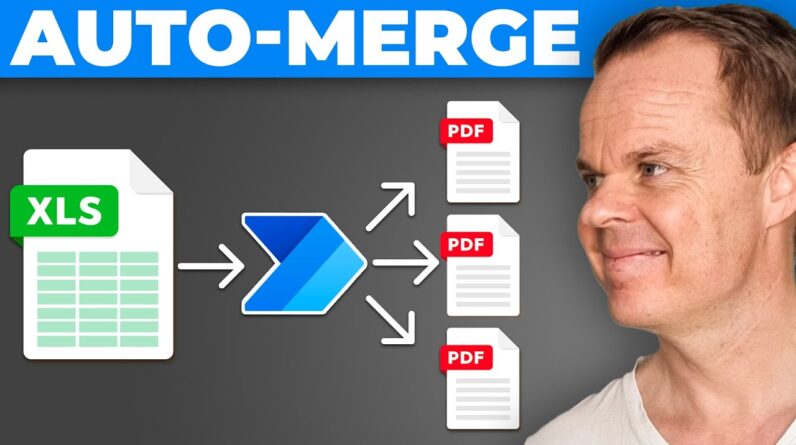
This advanced use case shows how to do REST API calls with Microsoft Power Automate Desktop and extract the XML response. A REST API call is often known as a web or HTTP request and is faster and more reliable than creating RPA that works in the UI. So always look for an API before clicking buttons in the UI.
⛓️ LINKS USED IN VIDEO: https://www.nationalbanken.dk/_vti_bin/DN/DataService.svc/CurrencyRatesXML?lang=en
Download the Excel: https://klogeandersdk-my.sharepoint.com/:x:/g/personal/anders_andersjensen_org/Ec-Cf4T_LC5IqzvsWw3vSA4BL19FaIXviKhJ1a3QHB40mQ?e=f8Ujxg
POWER AUTOMATE DESKTOP GROUPS:
👨👩👧👦 Discord: https://discord.gg/iloveautomation
– Join my network with 4000+ Automation/RPA developers, where we solve Automation/RPA problems, network, and help each other upgrade our careers. It’s free!
👩🏻🎓 LinkedIn: https://www.linkedin.com/groups/12566435
👨🏻💻 Facebook: https://www.facebook.com/groups/754059285247921
FOLLOW ME:
💼 LinkedIn: https://www.linkedin.com/in/andersjensenorg
📸 Instagram: https://www.instagram.com/andersjensenorg
👨 Facebook: https://www.facebook.com/andersjensenorg
🐦 Twitter: https://twitter.com/andersjensenorg
💌 Email Newsletter: https://andersjensen.org/email-newsletter
0:00 Intro
Performing a REST API call is like a Google search: You make a request and get a response back. We use a URL with parameters to complete the request; the response is sometimes in an XML format. A REST API call and the XML parse are easy to perform in Power Automate Desktop. Here’s how.
3:06 REST API Call
Use an Invoke web service action to perform a REST API call. A REST API is often called a web or HTTP request. The response here is in XML format; choose to save it as a file; then, it’s easy to work with.
5:33 Parse XML
In the Invoke web service, choose to save the file. Then, we read the XML file using a Read XML from file action. Next, specify the same file path you’ve used in the Invoke web service action. Next, we need to know a little XPath to query and parse the XML. Finally, we can get out the attribute values we need with the simple XPath expression.
8:59 REST API and XML Use Case
The Power Automate Desktop use case we need to solve involves reading an Excel sheet, making the REST API call based on the Excel sheet, parsing XML data, and writing it back to XML.
#powerautomate #powerplatform #office365