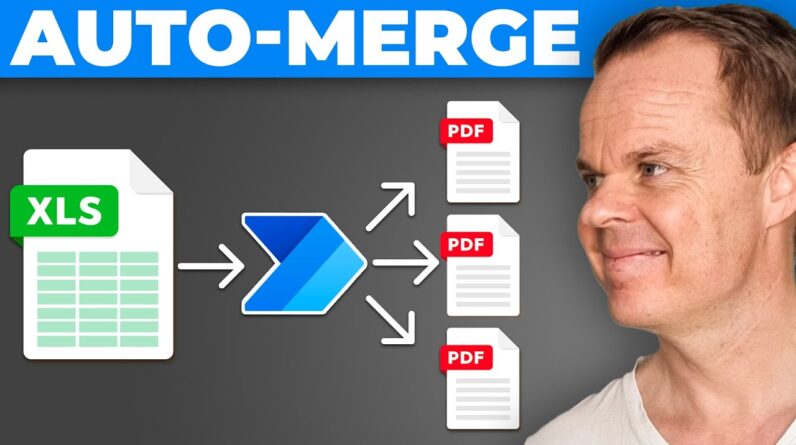
Learn how to use the AI Builder with Microsoft Power Automate Desktop. In the advanced use case, we do PDF invoice processing, where we call the AI Builder in Power Automate Cloud with a REST API Call, aka HTTP Request. The response is sent back to us in Power Automate Desktop, where we save the extracted data.
VIDEOS FOR YOU:
🔹 Extract data from ID Documents with AI Builder: https://youtu.be/Y8WrwVdMiJg
🔹 You Describe It – AI Builds It: https://youtu.be/U5ppA3J9qM4
POWER AUTOMATE DESKTOP GROUPS:
👨👩👧👦 Discord: https://discord.gg/iloveautomation
– Join my network with 4300+ Automation/RPA developers, where we solve Automation/RPA problems, network and help each other upgrade our careers. It’s free!
👩🏻🎓 LinkedIn: https://www.linkedin.com/groups/12566435
👨🏻💻 Facebook: https://www.facebook.com/groups/754059285247921
FOLLOW ME:
💼 LinkedIn: https://www.linkedin.com/in/andersjensenorg
📸 Instagram: https://www.instagram.com/andersjensenorg
👨 Facebook: https://www.facebook.com/andersjensenorg
🐦 Twitter: https://twitter.com/andersjensenorg
💌 Email Newsletter: https://andersjensen.org/email-newsletter
0:00 Configure Power Automate Cloud
We need to set up a connection to Power Automate Cloud to use the AI Builder in Microsoft Power Automate Desktop. First, we use the When an HTTP Request is received trigger. Then, with a Response action, we can send data back. When we receive and send data, it’s in JSON format. Finally, we get a URL to start the Power Automate Cloud flow from Desktop when we save.
3:26 Configure Power Automate Desktop
Now we can call Power Automate Cloud with a REST API Call (Invoke web service). The method is POST, and the format is JSON.
5:29 Invoice Processing with AI Builder in Power Automate Desktop
In Power Automate Desktop, we can read any folder, but when we want the AI Builder in the cloud to process our PDF invoice documents, we need them to be available in OneDrive, SharePoint, or DropBox. So either you should store them there or move them temporarily. Therefore, before sending the file path to the cloud, we do a little text manipulation to match the standards needed: The path should be relative to the OneDrive root and needs forward instead of backward slashes. Then, before we extract the invoice data in Power Automate cloud, we read the invoice data with the two OneDrive activities: Get file metadata using path and Get file content.
#powerautomate #powerplatform #office365